PHOTO GUIDE
How to Make a Photo Coloring Page
By CrayPrint · Published
Make a printable coloring page by signing in to CrayPrint, choosing a photo and selecting Make my coloring page. Once the drawing appears, adjust the lines and paper settings, then save a PDF. This guide explains what to check at each step, including results with unwanted background detail.
Choose a photo with a clear subject
Start with one person, pet or object in good light. Check that the face or main subject is in focus and large enough to see clearly. Landscapes and buildings also work, but more objects usually mean more lines to color.
Use your own photo or one you have permission to use. Choose a JPG, PNG or WebP file. If your phone saved a HEIC file, export a JPG copy first; renaming the file extension does not convert it.
Crop a busy photo in your phone or computer's photo editor before uploading. Keep the parts you want in the drawing, including ears, paws or hands. The tool's Size slider changes the finished drawing's size on paper; it does not crop the source photo.
Original photo
Generated drawing
Original photo
Generated drawing
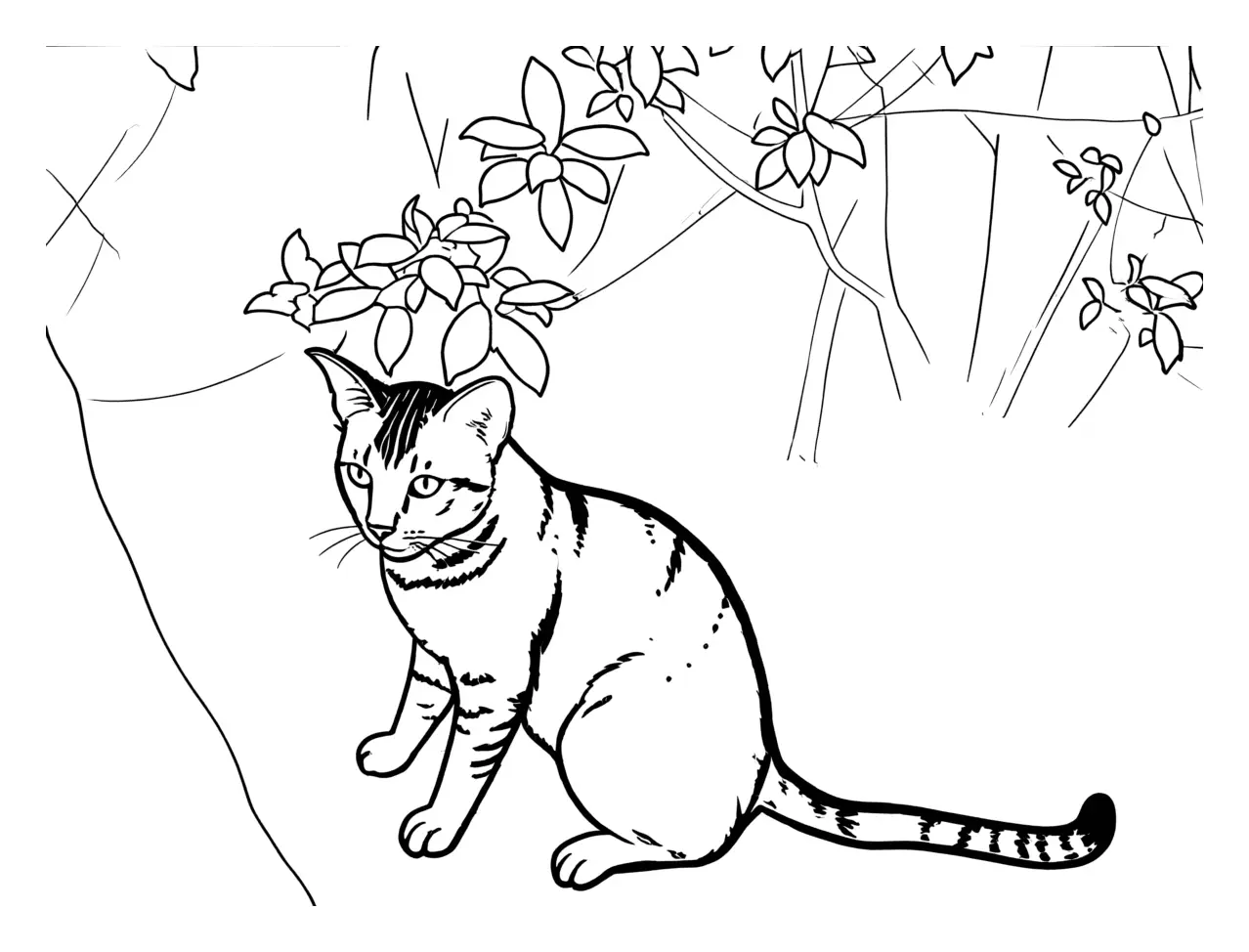
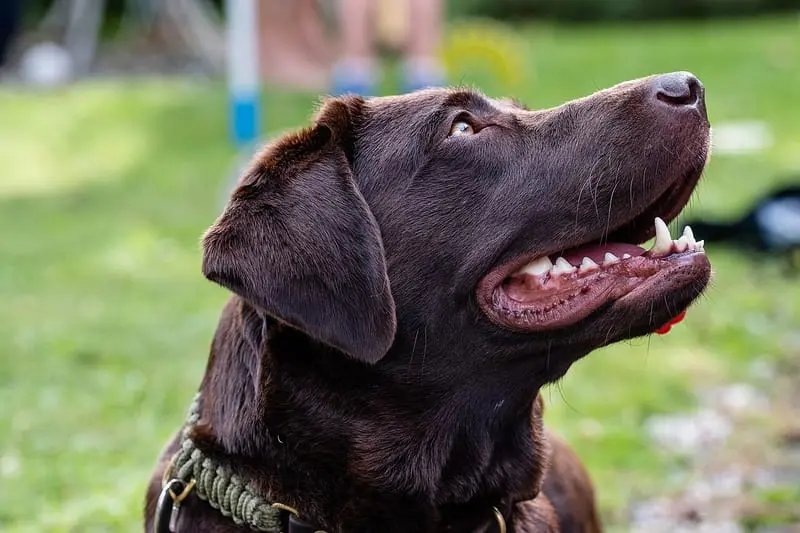
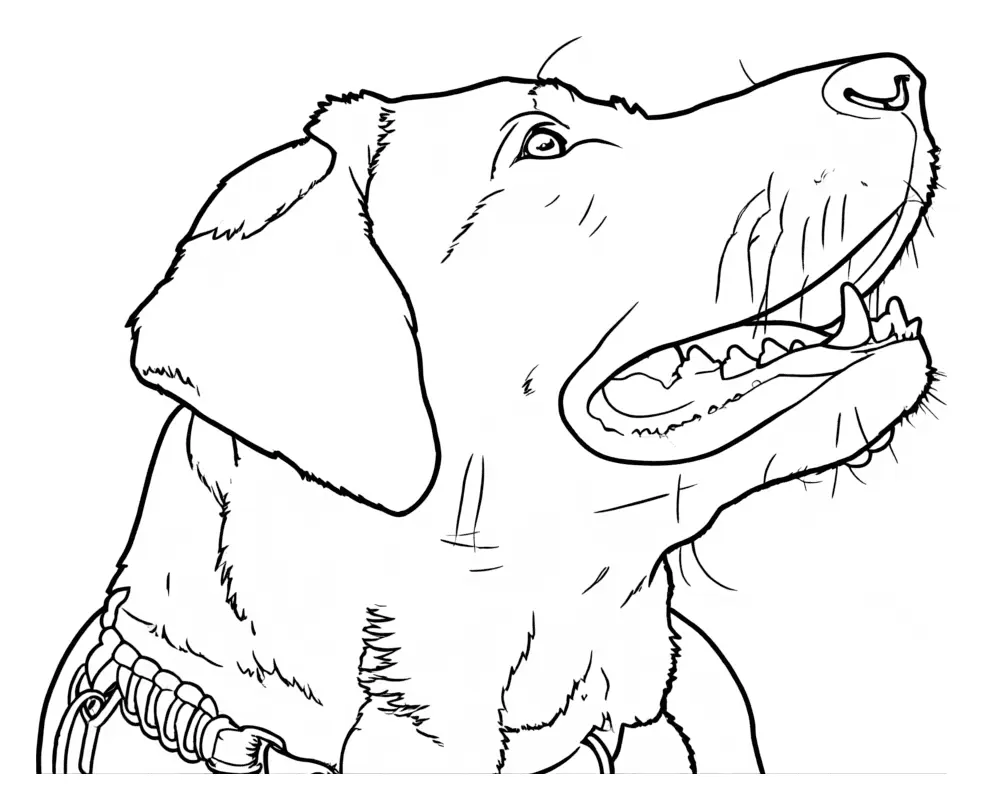
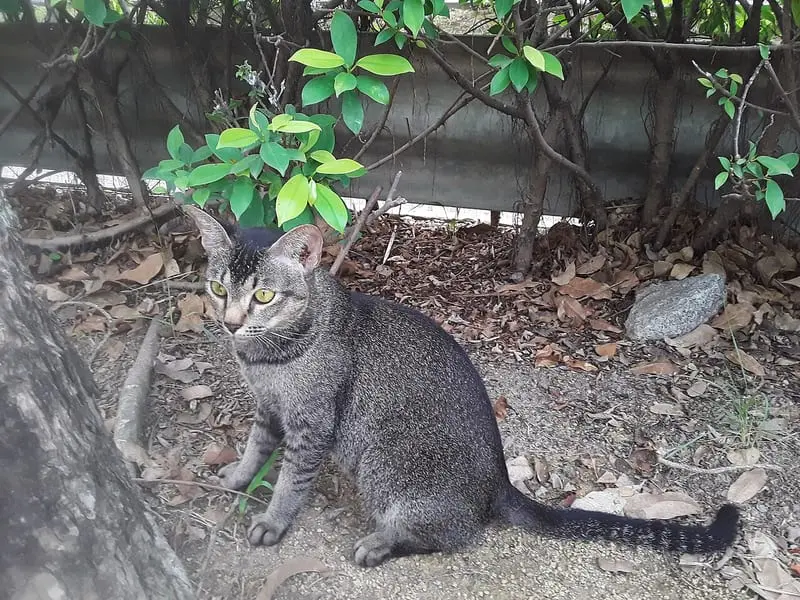
In the dog example, the face fills most of the image and the result has large open areas. In the cat example, garden branches remain above the cat. A closer crop may reduce background detail, but the result can still differ from the photo.
Sign in before choosing your file
- Open the photo coloring tool.
- Select Sign in to make your page if you are signed out.
- Sign in with Google or request an email sign-in link.
- Return to the tool and choose your photo. Select the file after signing in so you do not need to select it again after leaving the page.
The default allowance is five photo pages per account each day. Check the remaining count shown under the button for your account. New pages unlock at midnight UTC. Other CrayPrint coloring pages do not need an account to print.
When you generate a page, your photo goes through our server to a third-party AI service. CrayPrint does not store the photo or finished drawing. The service retains them for a limited time under its own policy. Read the privacy policy before uploading.
Generate and check the drawing
- Select Drop a photo or choose one, then pick your file. You can also drag a file onto the upload area.
- Check the thumbnail to confirm that you chose the right photo.
- Select Make my coloring page once.
- Wait until the preview shows the drawing and a Ready message.
The tool shows a progress message while it draws. Generation time can vary. You do not need to press the button again to change the paper or line settings afterward.
Check the result before printing
Look at the face, paws, hands and other details that matter to you. Check for unwanted background lines and large black patches. AI redraws the subject, so details can change or disappear.
If the subject looks wrong or the page is too busy, crop the original outside the tool or choose a clearer photo. Use Choose another photo, then generate a new drawing. A successful new generation uses another page from your allowance. Changing line thickness cannot remove a branch or restore a missing detail.
Adjust the page without generating again
Use these controls after the drawing appears. They update the preview without using another photo page.
- Line thickness: start with Medium. Try Bold if outlines are hard to see. Try Thin if thicker lines close small spaces around eyes or fur.
- Paper size: choose A4 or US Letter to match the paper in your printer before downloading.
- Orientation: the tool initially chooses Portrait or Landscape to fit the drawing. Switch it if the other direction suits your page better.
- Size: 100% fits the drawing inside a half-inch margin. Reduce it toward 50% to leave room around the drawing for a name or a hand-drawn background. The drawing stays centered.
For a page with extra space, try A4, Portrait, Bold and 75%. Check the preview after each change. These are example settings, not settings that suit every photo.
Save a copy, then print
- Select Download PDF to save
photo-coloring-page.pdfwith your chosen paper size and orientation. - Open the PDF and check that the whole drawing is visible on one page.
- In the print dialog, select the matching paper and orientation. Start with Actual size or 100%.
- Check the print preview before printing.
The tool's Print button opens printing directly. Use PNG below the main buttons if you need an image file for another document. Choose PDF when you want to preserve the selected paper dimensions.
Save your result before closing or refreshing the tab. CrayPrint has no saved-photo gallery. For printer scaling and cut-off edges, follow the A4 and US Letter printing guide.
If the tool cannot make your page
- Unsupported file: export a JPG, PNG or WebP copy, then choose that file.
- Photo too small: use the original image instead of a tiny thumbnail. Each side must be at least 64 pixels; a larger, sharp source gives the tool more detail.
- Photo too long and thin: crop a panorama closer to the subject in your photo editor, then upload the cropped copy.
- Photo refused: choose a different suitable photo. Refused images do not count toward your daily pages.
- Service busy or something went wrong: wait and retry. The error message tells you when the attempt did not count.
- Daily allowance used: wait until midnight UTC. If the whole site's allowance is used, return the next day. You can still save a drawing already visible in the preview.
Ready to try your own picture? Make a photo coloring page. For ready-made sheets, browse name coloring pages, or return to all coloring guides.