PRINTING GUIDE
How to Print Coloring Pages on A4 and US Letter
By CrayPrint · Published
Match the coloring page to the paper in your printer, then check the print preview before you print. For a custom name page, choose US Letter or A4 in the generator before downloading the PDF. If a ready-made page is a different size from your paper, use your print dialog's fit setting and check that every edge is visible.
Choose the paper before downloading
US Letter is 8.5 × 11 inches. A4 is 210 × 297 mm. A4 is narrower and taller, so changing only the printer's paper setting can crop a page designed for US Letter.
CrayPrint's ready-made name and seasonal coloring pages use US Letter. The name generator can make either size, in portrait or landscape orientation. Printing and the name generator do not need an account.
- Check the size on your paper package.
- Open the name generator.
- Type a name using up to 12 letters, A–Z.
- Under Paper size, select US Letter or A4 to match your paper.
- Under Orientation, choose Portrait or Landscape.
- Check the page preview, then select Download PDF.
The PDF uses the paper size and orientation you selected. If you change either setting later, download a new PDF.
Try it with an Emma page
Make an Emma page, choose Bubble under Letter style, and select None under Decorations.
Keep Portrait selected. Choose your paper size before downloading.
The downloaded file is called emma-name-coloring-page.pdf.
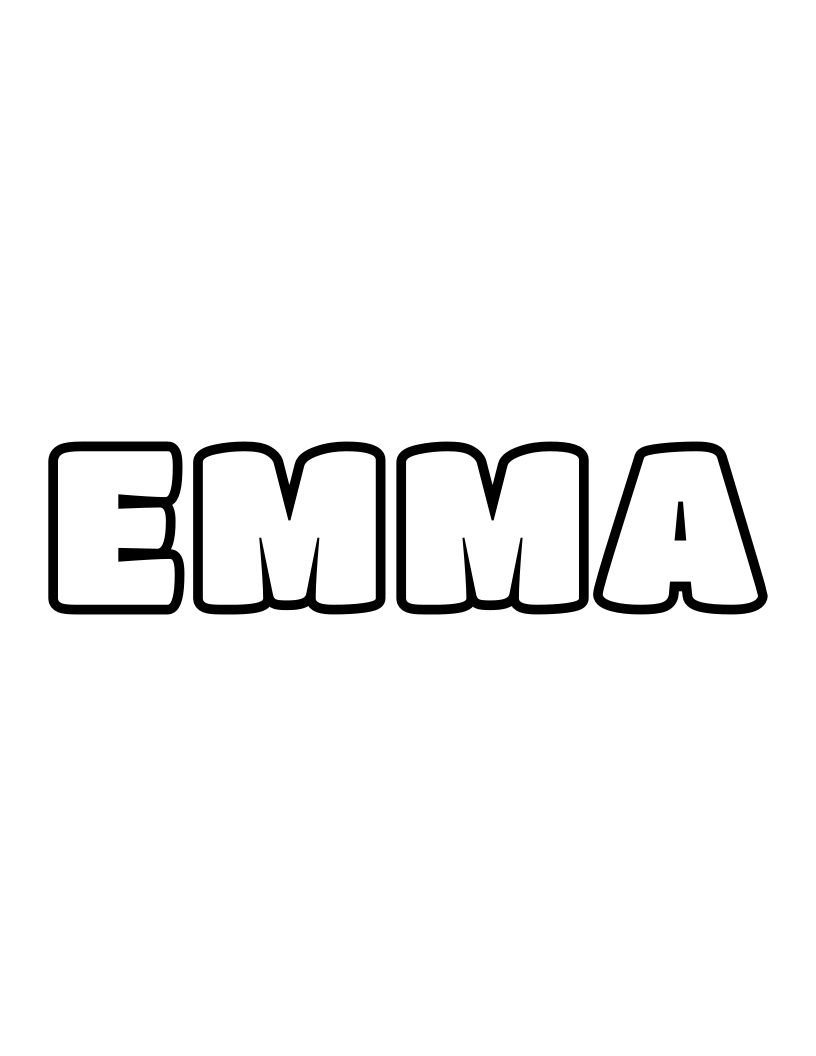
Open the PDF and check that it contains one page with the whole name visible. For portrait US Letter, its page size is 8.5 × 11 inches. For portrait A4, it is 210 × 297 mm. These are the document dimensions; your printer can still add margins or scale the page.
Print the downloaded PDF
- Open the PDF in a viewer with a print option.
- Open the print dialog and select your printer.
- Select the paper size loaded in the printer.
- Match the orientation to the PDF.
- Start with Actual size or 100% when the PDF and paper sizes match.
- Check the preview for missing edges or letters. If anything is clipped, select Fit or Fit to printable area.
- Print one copy before printing a class set.
Print-dialog labels vary by browser, PDF viewer and printer. Use the preview to check the result instead of relying on a setting name alone. A small white margin is expected on printers that cannot print to the edge of the sheet.
Print a ready-made coloring page
Browse name coloring pages or Christmas coloring pages. Select a picture to open its viewer, then select Print. The small print button on a picture's card also prints that picture. Use these controls instead of printing the whole browser page.
Ready-made pages are sized for US Letter. If you use A4 paper, choose A4 in the print dialog and fit the picture to the printable area. Check the preview because the page proportions differ. For name pages, you can also use the generator to create an A4 PDF directly.
The generator's Print button is another option when you do not need a saved file. Select the paper size in the generator first, then check the browser's print dialog.
If the edges are cut off
- Wrong paper size: Check both the PDF dimensions and the printer setting. A Letter PDF does not become an A4 PDF when you change the paper tray.
- Printer margins: Use the fit setting if the printer cannot fit the complete picture at 100%.
- Wrong orientation: Match portrait or landscape in the document and the print dialog.
- Headers or a web address appear: Turn off browser headers and footers, or print the downloaded PDF.
- The whole website prints: Return to the picture viewer's Print button, or use the name generator's PDF download.
- The page looks too small: Check that pages per sheet is set to one. Use 100% only if the complete picture fits in the preview.
Before printing more copies
Check one copy for complete outlines, readable letters and the size you want. Plain printer paper is a starting point for crayons and colored pencils. If you use thicker paper, first check that your printer supports its weight.
You can use CrayPrint pages at home, in a classroom or in a library. The terms of service explain the permitted uses. For your next page, make your own coloring pages or browse the coloring guides and activities.